Getting started
Welcome to Departure Board
Departure Board is a Windows screensaver in the style of the old split-flap boards at railway stations and airports. Every character is a real flap that clatters round until it reaches the letter it needs.
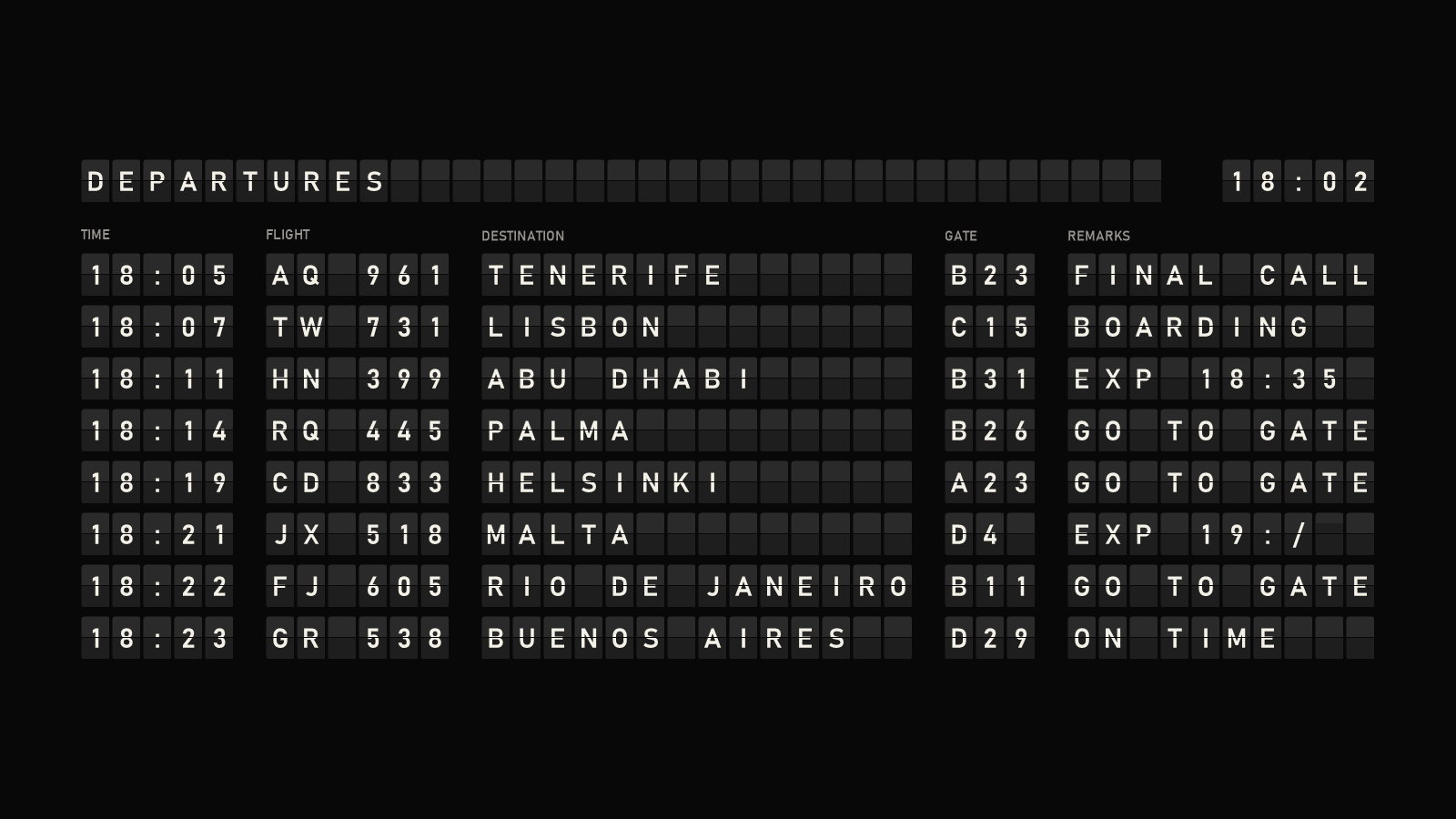
The board shows a made-up timetable that runs on the real clock. Trains and flights leave at their times, the rows move up, new ones join at the bottom, and every so often one is delayed, changes platform or gate, or is cancelled. There's a flip clock in the top corner, and the title is yours to choose.
Choose a railway station or an airport board, your own colours and font, and where the trains and flights go. With Pro it can also show arrivals, places from anywhere in the world, your own messages, and several boards that take turns.
Getting started
Free, standard and Pro
You can use Departure Board free for as long as you like. A licence is a one-off payment, covers up to 3 PCs and never expires. Options that need Pro are marked (Pro) in the settings, and are greyed out without a Pro licence.
| Free FREE | Standard licence | Pro licence PRO | |
|---|---|---|---|
| The board | Railway or airport departures, title, rows, activity, flap speed, clock, flap sound | The same | Also arrivals boards |
| Destinations | Nine ready-made packs | The same | Also places suggested from your home town anywhere in the world, and your own list |
| Appearance | Your own colours and font, six presets, size and brightness | The same | Also three more presets: Red LED, Ice and Brass |
| Displays | A board on every display, or the main display only | The same | Also departures on one display and arrivals on another, for up to four displays |
| Extras | Your own airline codes, flight numbers, platforms and gates; a message row; up to six saved boards that take turns | ||
| On screen | A small "free version" caption | No caption | No caption |
The caption moves to a different corner every two minutes, so it can't burn into your screen. See Buying a licence and Upgrading to Pro.
Getting started
System requirements
- Windows 11, or Windows 10 version 1803 or later, 64-bit
- Nothing else to install: it uses the .NET Framework 4.7.2 that's part of Windows
- About 4 MB of disc space
- Permission to install programs (setup asks for it)
- An internet connection only to activate a licence and for its check every couple of weeks. The screensaver itself never goes online.
Getting started
Quick start
- Install Departure Board, leaving Use Departure Board as my screensaver ticked at the end.
- Windows opens Screen Saver Settings with Departure Board chosen. Set how many minutes to Wait, then choose Settings….
- Pick a Style (railway station or airport), type a Title, and try a colour preset. The preview shows the board as you go.
- Choose Test full screen to see it properly. Move the mouse or press a key to stop.
- Choose OK in the settings, then OK in Screen Saver Settings.
The board now appears whenever your PC has been idle for the time you chose.
Installation
Installing Departure Board
- Download
DepartureBoard-Setup-2.1.3.exefrom the Clarke Foundry website and open it. - Windows asks whether to let it make changes, because screensavers are installed for everyone on the PC. Choose Yes.
- Choose Next and Install.
- On the last page:
- Use Departure Board as my screensaver (ticked) opens Windows' Screen Saver Settings with Departure Board already chosen.
- Open Departure Board settings opens the settings window.
The screensaver is installed as C:\Windows\System32\Departure Board.scr, where Windows looks for screensavers, and the Start menu gets a Departure Board Screensaver settings entry.
Installation
Choosing it in Windows
If you didn't choose Departure Board at the end of setup, or you've since picked another screensaver:
- Open Windows Settings > Personalisation > Lock screen, and choose Screen saver near the bottom.
- Pick Departure Board from the list.
- Set Wait to the number of minutes before it starts. Tick On resume, display logon screen if you'd like your PC to lock as well.
- Choose Settings… to open Departure Board's own settings, or Preview to see it.
- Choose OK.
Windows shows a small live preview of the board in the picture of the screen at the top of Screen Saver Settings.
Installation
Updating
To update, download the new setup and run it. It replaces the screensaver and keeps your settings, destinations, saved boards and licence.
Installation
Uninstalling
- If you'd like to use your licence on another PC later, first choose Deactivate on this PC in the settings.
- Open Windows Settings > Apps > Installed apps, find Departure Board Screensaver, and choose Uninstall.
Your settings and licence stay on the PC, so a reinstall picks them up. See Where things are kept if you'd like to remove them too.
Settings
The settings window
To open the settings, choose Departure Board Screensaver settings from the Start menu, or Settings… in Windows' Screen Saver Settings.
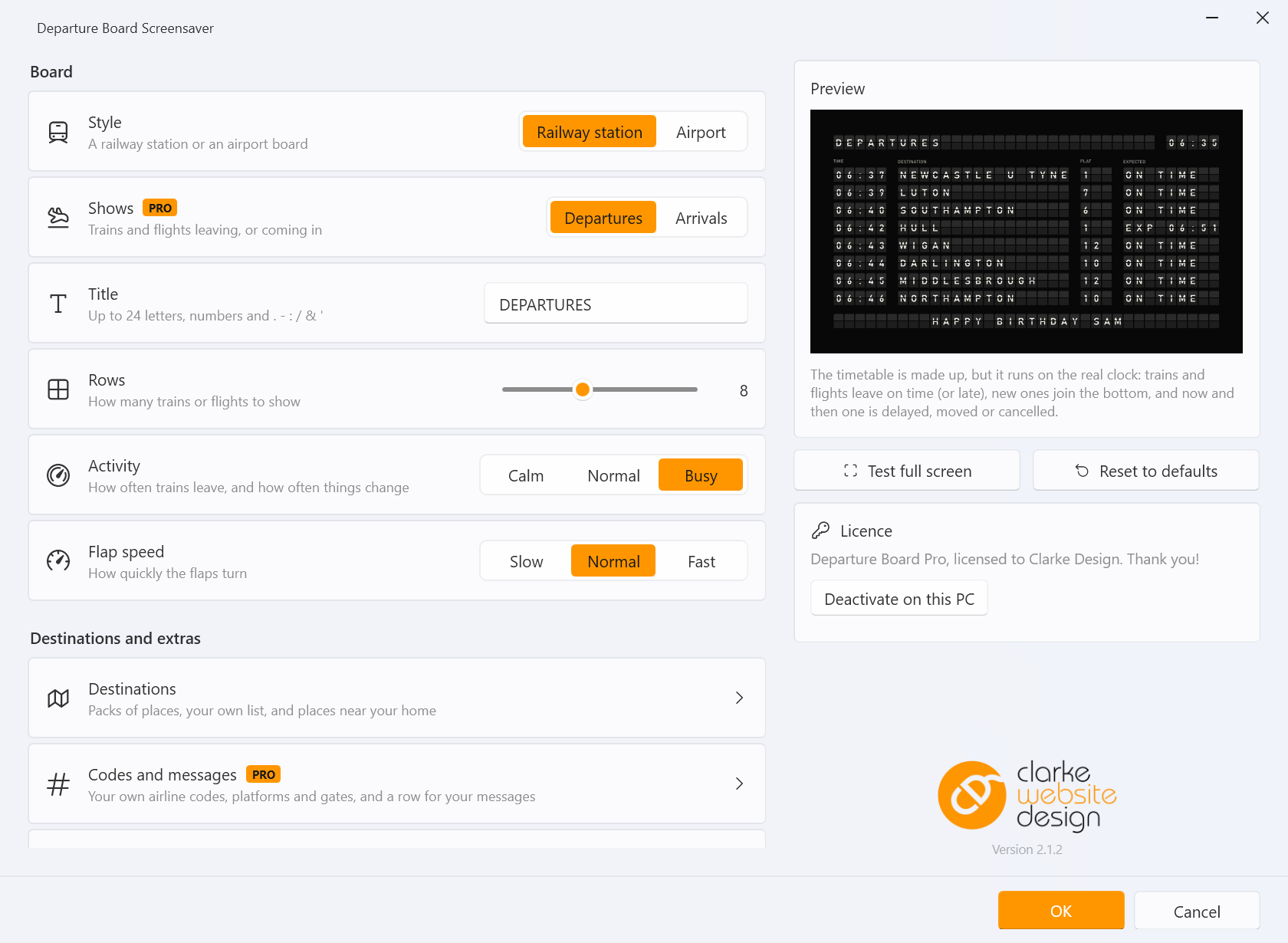
The options are on the left, in cards: the board, destinations and extras, clock and sound, displays and appearance. Scroll down for the later ones. On the right are a preview that shows the board as it will look, changing as you change things, the Test full screen and Reset to defaults buttons, and your licence.
Options with only two or three choices, such as Style and Flap speed, are a row of buttons: click the one you want. The windows are light or dark to match the app mode in Windows Settings > Personalisation > Colours, and change straight away if you switch it.
Choose OK to keep your changes, or Cancel to leave everything as it was.
Settings
Board options
- Style: Railway station (time, destination, platform, expected) or Airport (time, flight, destination, gate, remarks).
- Shows PRO: Departures or Arrivals. See Arrivals boards.
- Title: the words across the top, up to 24 characters. The flaps have the letters A to Z, the digits and
. - : / & '; anything else shows as a blank flap. - Rows: how many trains or flights to show, from 4 to 14.
- Activity: Calm, Normal or Busy. A busier board has departures closer together and more delays and platform changes.
- Flap speed: Slow, Normal or Fast.
Under Destinations and extras, click a card to open its window:
- Destinations: where the trains and flights go. See Choosing destinations.
- Codes and messages PRO: your own flight numbers, platforms and gates, and the message row.
- Saved boards PRO: boards that take turns.
Settings
Clock and sound
- Show the clock on the board: a flip clock in the top-right corner.
- 24-hour clock: 17:30 rather than 5:30 PM, for the clock and the timetable.
- Flap sound: a soft clatter while the flaps are turning. It's off to begin with, plays on your main display only, and never in the preview.
Settings
Displays
With Show on all displays on, every display gets a board, each with its own timetable. Turn it off to show the board on your main display only; the others go black.
Departures on one display, arrivals on another PRO
With two or more displays, turn on Choose for each display. A row appears for each display, numbered from left to right, and each can show Departures, Arrivals or Off. The rows give each display's size and say which is your main display, to help you tell them apart.
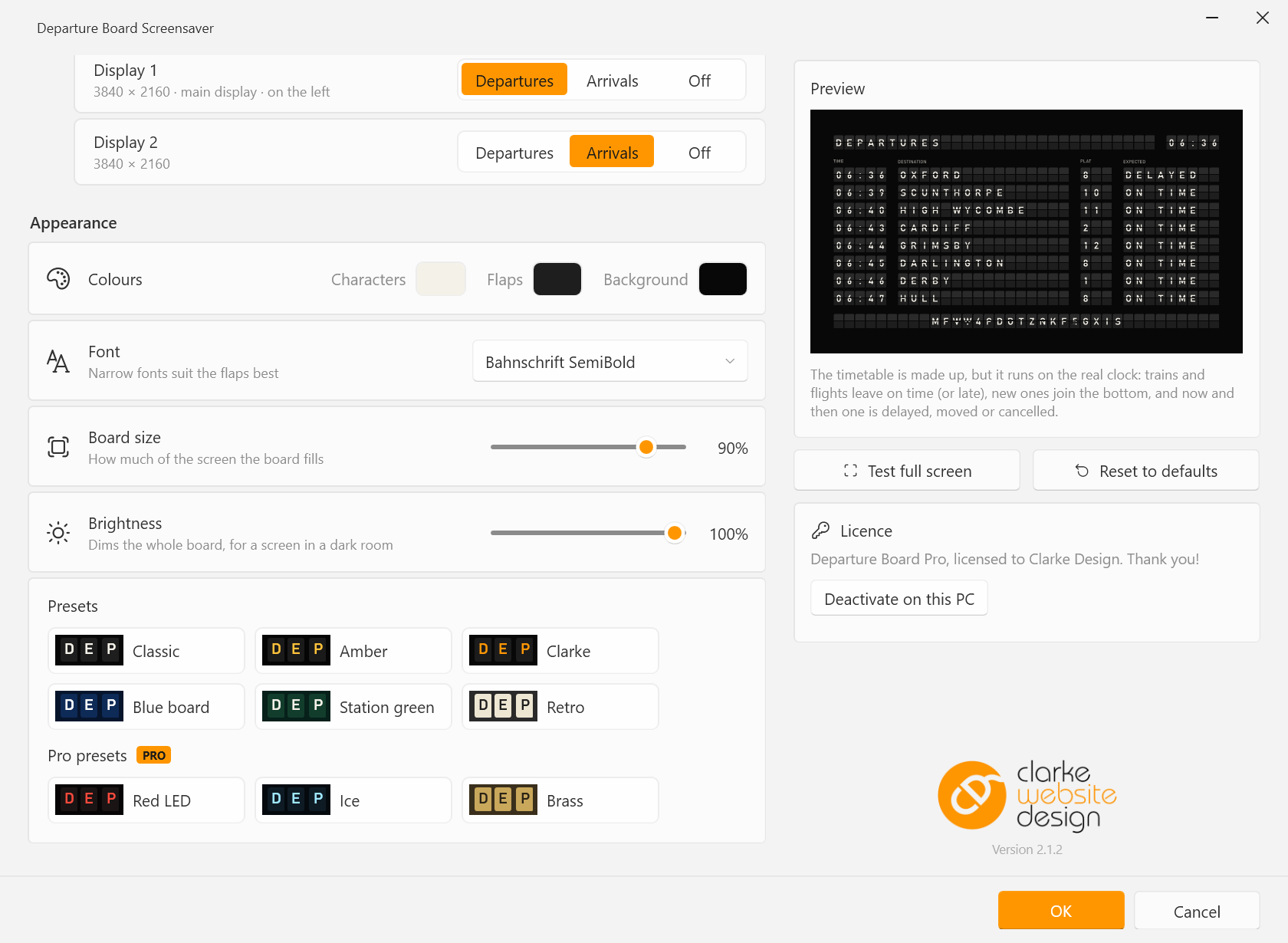
- This works for up to four displays. A fifth or sixth display shows departures.
- Each display uses the board's other settings, so a railway board gives railway departures on one display and railway arrivals on the other. If the title is the standard DEPARTURES, an arrivals display shows ARRIVALS.
- With saved boards taking turns, every board shows as departures or arrivals to suit its display.
- With one display, or without a Pro licence, Show on all displays decides as usual.
Settings
Colours and appearance
- Colours: click a swatch to choose the colour of the characters, the flaps or the background.
- Presets: click one to set all three colours at once: Classic, Amber, Clarke, Blue board, Station green and Retro. With Pro there are also Red LED, Ice and Brass PRO.
- Font: any font on your PC. The board is designed around Bahnschrift SemiBold, which comes with Windows; narrow fonts suit it best.
- Board size: how much of the screen the board fills, from 40% to 100%.
- Brightness: dims the whole board, from 20% to 100%. Handy for a screen in a dark room.
Settings
Testing and resetting
- Test full screen runs the board full screen with your current settings, before you've saved them. Move the mouse, click or press any key to come back.
- Reset to defaults puts the board, clock, display and appearance options back as they were when you installed. Your destinations, codes, messages and saved boards are kept.
The board
How the timetable works
The timetable is made up, but it keeps to the real time on your PC:
- Each train or flight leaves the board at its expected time. The rows below move up and a new one joins at the bottom.
- Every so often one is delayed, moves platform or gate, makes up some lost time, or is cancelled. How often depends on Activity.
- A delay may show as DELAYED for a minute or two before the new expected time is known, as on a real board. Nothing is ever more than about an hour and a half late.
- Places don't repeat close together, so the same destination isn't shown twice at once.
The board
What the statuses mean
Railway station departures
| ON TIME | Leaving at its time. |
|---|---|
| EXP 17:24 | Running late, now expected at 17:24. |
| DELAYED | Late, but the new time isn't known yet. |
| DEPARTING | Leaving in the next minute. |
| CANCELLED | Not running. It stays on the board for a couple of minutes. |
Airport departures
| ON TIME, EXP 17:24, DELAYED | As on the railway board. |
|---|---|
| GO TO GATE | 20 minutes or less to go. |
| BOARDING | 12 minutes or less. |
| FINAL CALL | 4 minutes or less. |
| CLOSED | The gate has closed; the flight leaves in the next minute. |
| CANCELLED | Not flying. |
The board
Arrivals boards PRO
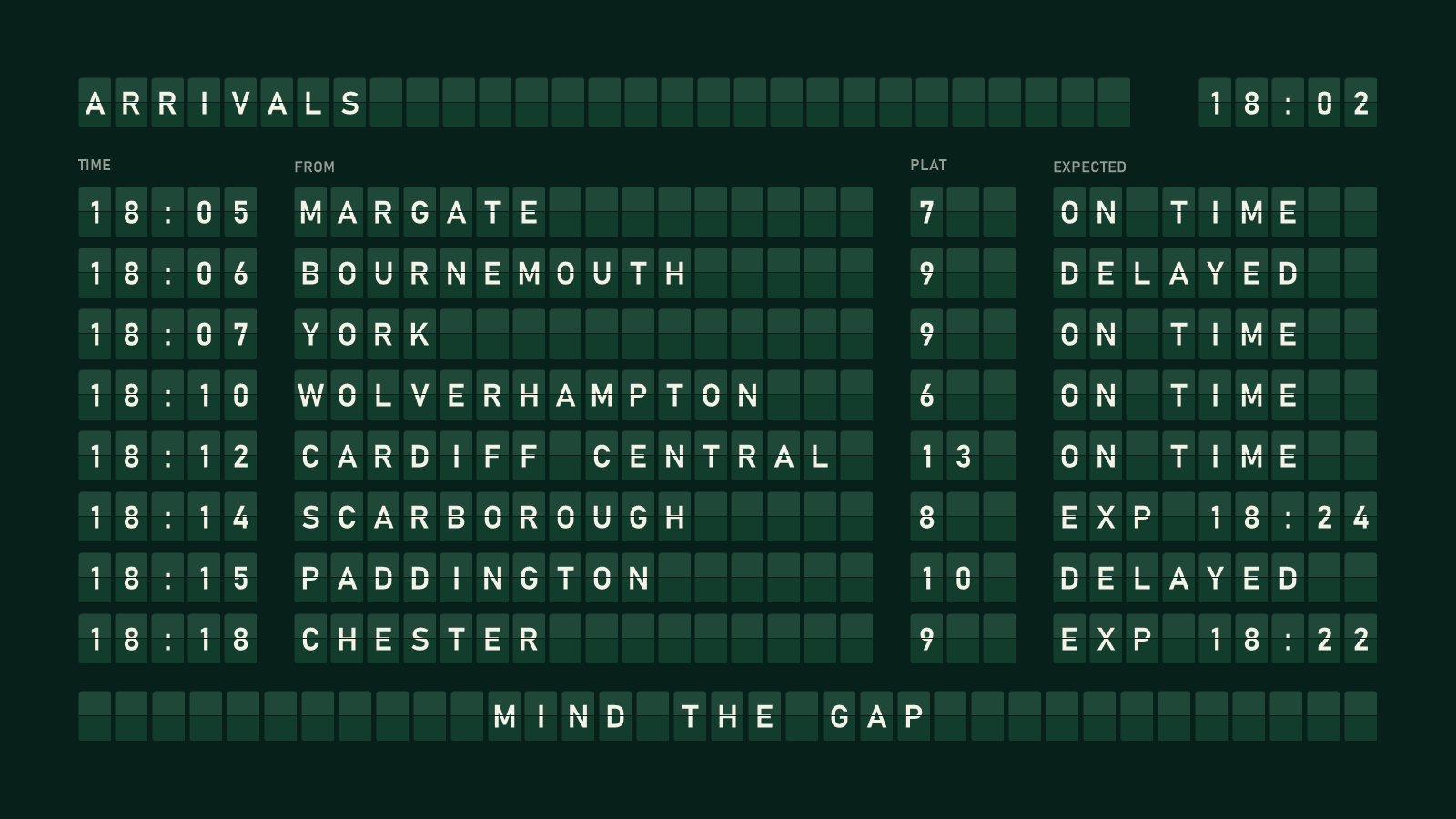
Set Shows to Arrivals for a board of trains or flights coming in. The title changes to ARRIVALS as well, unless you've typed your own.
- Railway arrivals show Time, From, Plat and Expected. A train shows ARRIVED for 3 minutes after it gets in.
- Airport arrivals show Time, Flight, From and Status. A flight shows LANDING just before it lands, then LANDED 17:24, then which BAGGAGE belt its luggage is on, and leaves the board 15 minutes after landing.
The destinations you choose are used as the places they're arriving from.
Destinations
Choosing destinations
Click Destinations in the settings.
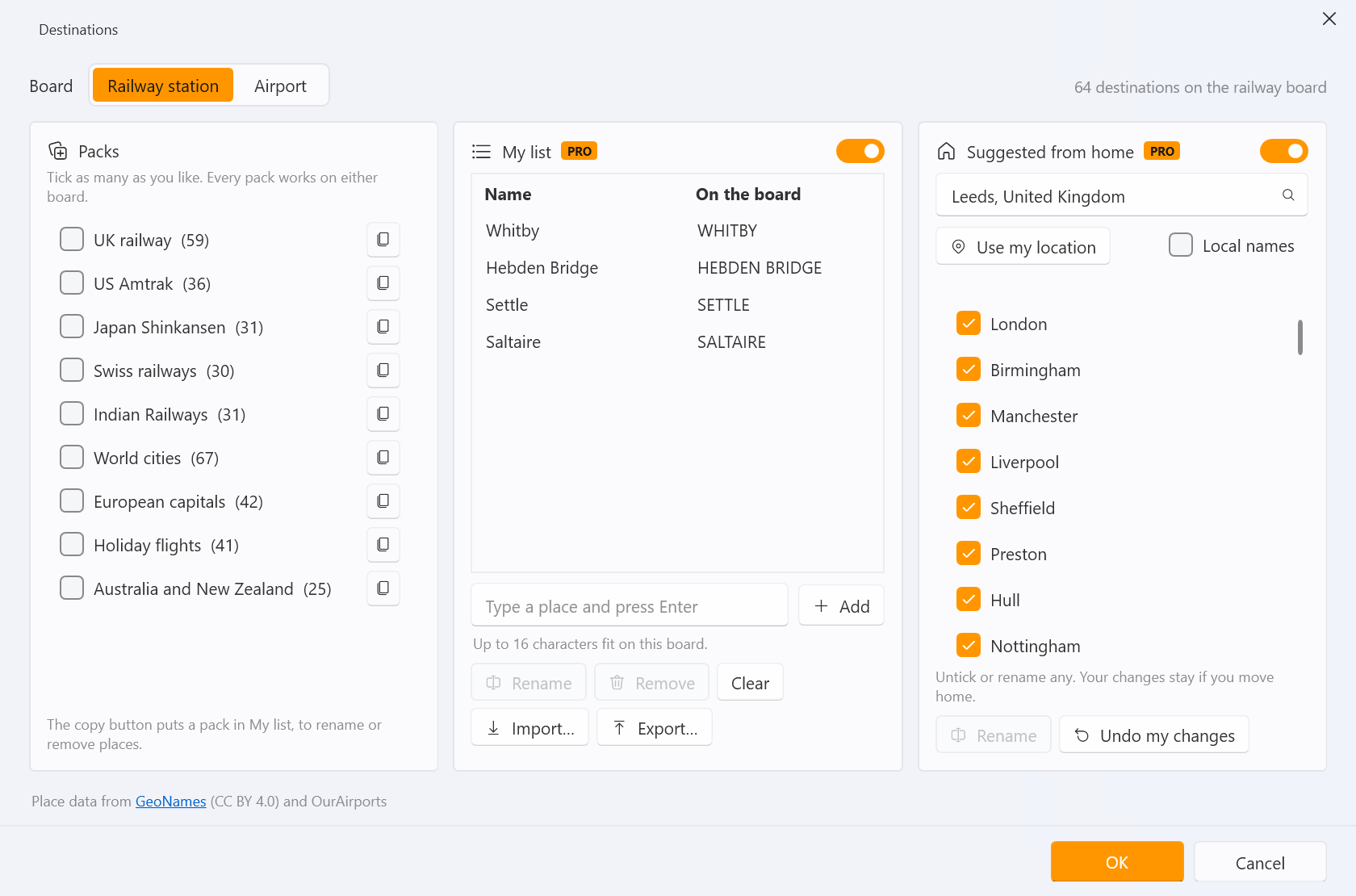
The railway and airport boards each have their own destinations. Pick which one you're changing from Board at the top. A board can draw on any mix of:
- Packs: ready-made lists.
- My list PRO: places you type yourself.
- Suggested from home PRO: places worked out from your home town.
The line at the top right says how many destinations the board has. If nothing is chosen, the railway board uses UK railway and the airport board uses World cities.
Destinations
Packs
Tick as many packs as you like. Each works on either board; the ones that suit the board you're changing are listed first.
| UK railway | 59 stations, from Penzance to Inverness |
|---|---|
| US Amtrak | 36 stations |
| Japan Shinkansen | 31 bullet-train stations |
| Swiss railways | 30 stations |
| Indian Railways | 31 stations |
| World cities | 67 cities on every continent |
| European capitals | 42 capitals |
| Holiday flights | 41 sunny places |
| Australia and New Zealand | 25 cities and towns |
With Pro, the copy button next to a pack copies it into My list, where you can rename or remove places, and unticks the pack.
Destinations
My list PRO
- Turn on the switch next to My list. (Adding your first place turns it on for you.)
- Type a place in the box and press Enter, or choose Add. Under the box you can see how it will look on the flaps before you add it.
- The list shows each place as you typed it, and On the board as the flaps will show it.
- Rename (F2) changes the selected place; Remove (Delete) takes it off; Clear empties the list after asking.
- Import… adds places from a text file with one place per line. Blank lines and lines starting with
#are skipped, as are places already in the list. - Export… saves your list as a text file, to keep or to use on another PC.
- A list can hold up to 1,000 places.
Destinations
Suggested from home PRO
Departure Board knows every town and city in the world with more than 15,000 people, and which of them have flights. From your home it suggests about 60 places for each board:
- On the railway board: towns and cities within reach by train, mostly in your own country, with the nearer and bigger ones first. Places too close to count as a trip are left out.
- On the airport board: places with scheduled flights at least 300 km away, mostly short and medium haul, plus long-haul flights to the world's big hub airports.
Setting your home
- Type a town or city in Home and pick it from the list, either by clicking it or with ↓ and Enter.
- Or choose Use my location, and Windows finds the town or city nearest your PC. Location must be on in Windows Settings > Privacy & security > Location.
- Until you choose, home is the biggest city in your PC's region and time zone.
Using the suggestions
- Turn on the switch next to Suggested from home. If the board was still on its starter pack, the pack is unticked so the two don't mix.
- Untick any place you don't want, or select one and choose Rename to show it your way. These changes are kept even if you move home, and Undo my changes puts the list back as suggested.
- Tick Local names to show places as they're known locally: MUENCHEN, LISBOA and GENÈVE rather than MUNICH, LISBON and GENEVA. Places whose own name isn't written in Latin letters, such as Athens or Tokyo, keep their English name.
Destinations
How names are shown
- The flaps have only capital letters, digits and
. - : / & ', so names are converted: Zürich becomes ZURICH and Łódź becomes LODZ. - A name in another script, such as Москва, can't be shown. Type it in Latin letters instead (Moscow).
- The destination column holds 16 characters on the railway board and 14 on the airport board. Longer names are shortened, first with common abbreviations (INTERNATIONAL becomes INTL, AIRPORT becomes ARPT, SAINT becomes ST), and then cut. To choose your own short form, rename the place.
Pro options
Flights, platforms and gates PRO
Click Codes and messages in the settings.
Airport
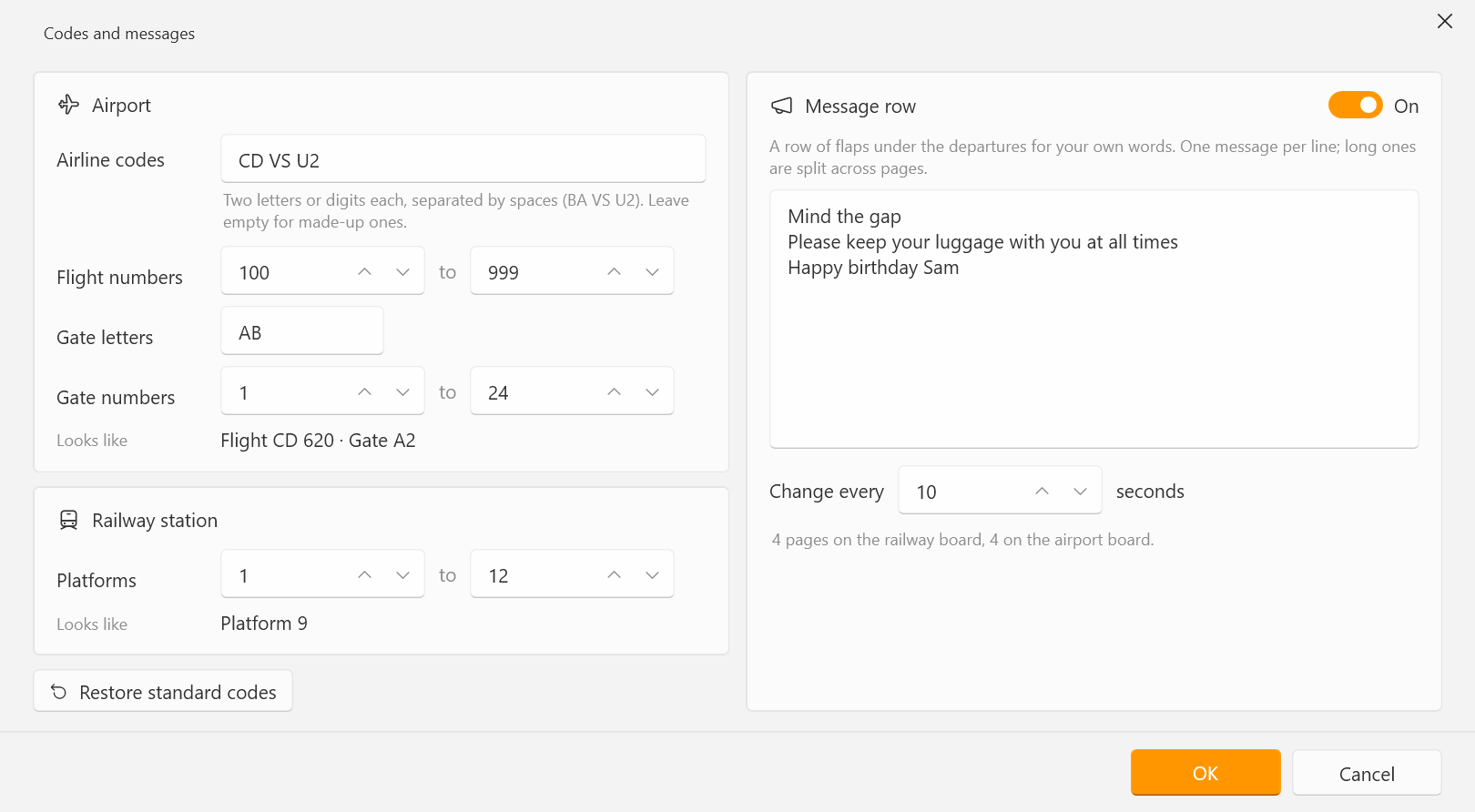
- Airline codes: two letters or digits each, separated by spaces, such as
BA VS U2. Leave it empty for made-up codes that don't belong to any real airline. - Flight numbers: the range they're picked from, between 1 and 9999.
- Gate letters and Gate numbers: for example letters
ABand numbers 1 to 24 give gates such as A7 and B18. Leave the letters empty for numbered gates only.
Railway station
- Platforms: the range of platform numbers, such as 1 to 9 for a smaller station.
Looks like shows an example as you change things. Restore standard codes puts back the made-up airlines, flights 100 to 999, platforms 1 to 14 and gates A to D, 1 to 32.
Pro options
The message row PRO
The message row is an extra line of flaps under the departures, for your own words: "Mind the gap", "Happy birthday Sam", "Team meeting at 3".
- In Codes and messages, turn on the Message row switch.
- Type your messages, one per line.
- Choose how often they change, between 3 and 60 seconds (10 to begin with).
Messages are centred on the row. A message too long for one row is split into pages between words, and the window tells you how many pages your messages make on each board. Every display shows the same page at the same time.
Pro options
Saved boards PRO
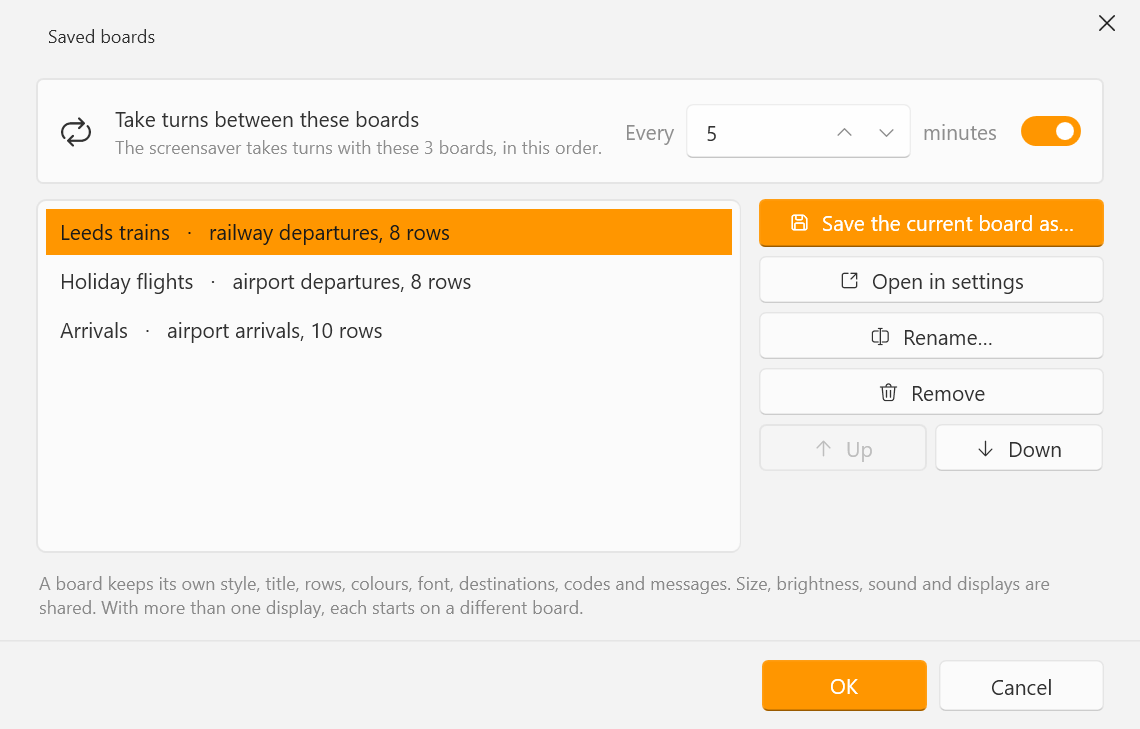
Save up to six boards and the screensaver takes turns between them: Leeds departures, say, then holiday flights, then an arrivals board.
- Set up a board in the settings the way you want it.
- Click Saved boards, then Save the current board as…, and give it a name.
- Change the settings for the next board and save that too. When you save a second board, Take turns between these boards is turned on for you.
- Choose how many minutes each board shows for, between 1 and 120.
- A saved board keeps its own style, departures or arrivals, title, rows, colours, font, destinations, codes and messages. Board size, brightness, sound and displays are shared.
- When the board changes, every flap turns over to the new one. With several displays, each starts on a different board, and they all change together.
- Open in settings (or double-click) loads a board so you can change it; save it again under the same name to replace it. Up and Down set the order.
- Taking turns shows in the screensaver and in Test full screen, but not in the preview.
Your licence
Buying a licence
In the settings, the Licence section shows which version you have. Choose:
- Buy a licence for the standard licence, which removes the "free version" caption.
- Get Pro for the Pro licence, which removes the caption too and turns on everything marked PRO.
Both open the Clarke Foundry shop in your browser, and your licence key arrives by email.
Your licence
Entering your key
- In the settings, choose Enter licence key….
- Paste the key from your receipt email and choose Activate. This needs an internet connection.
The caption goes straight away, and Pro options become available with a Pro key. The settings window checks the licence again every 14 days or so when you open it. The screensaver itself never goes online, and being offline never removes a licence.
Your licence
Upgrading to Pro
- In the settings, choose Upgrade to Pro and buy Pro.
- Choose Enter Pro key… and paste your new key.
Your standard licence is freed from this PC, so it can be used on another one.
Your licence
Moving to another PC
Each licence covers up to 3 PCs. To use it on a different one, choose Deactivate on this PC in the settings of the PC you're leaving, then enter the key on the new one.
Reference
Keyboard and mouse
| Keys | Where | Does |
|---|---|---|
| Any key, a click, or moving the mouse | The screensaver | Stops it |
| Enter / Esc | The settings and most other windows | OK, or Cancel (in the message box, Enter starts a new line) |
| Enter | My list | Adds the place you've typed |
| F2 / Delete | My list | Renames or removes the selected place |
| F2 | Suggested from home | Renames the selected place |
| ↓ then Enter | Home | Chooses a place from the list |
| Tab, Shift+Tab, Space | Everywhere | Moves between controls, and turns switches on or off |
| / | This help | Jumps to search |
Reference
Where things are kept
| The screensaver | C:\Windows\System32\Departure Board.scr |
|---|---|
| Settings, destinations and saved boards | The registry, under HKEY_CURRENT_USER\Software\Clarke Design\Departure Board Screensaver |
| Licence (sealed to your Windows account) | The same place, under License |
Settings belong to your Windows account, so each person on the PC can have their own board.
Departure Board only goes online to activate or check a licence. Use my location asks Windows for your location once, when you click it, to find the nearest town; the place data is built in and nothing is sent anywhere.
Reference
Place data and credits
- Towns, cities and their names come from GeoNames, used under the Creative Commons Attribution 4.0 licence.
- Airports come from OurAirports, which is in the public domain.
- This help uses Bootstrap and Bootstrap Icons, under the MIT licence.
Reference
Known limitations
- The timetable is made up: it doesn't show real trains or flights.
- Places are shown in Latin letters only.
- Only places with more than 15,000 people can be suggested from home. Smaller places can go in My list.
- Choosing departures or arrivals for each display works for up to four displays.
- Saved boards take turns in the screensaver and Test full screen, not in the preview.
Help
Troubleshooting
C:\Windows\System32, which is where setup puts it. Run setup again to put it back; your settings are kept. If you copied the .scr somewhere else and chose Install from its right-click menu, it disappears from the list as soon as you pick another screensaver.
- Check the key was copied in full from your receipt email.
- "Already in use on the maximum number of PCs": choose Deactivate on this PC on one of your other PCs and try again.
- "Couldn't reach the licence server": check your internet connection. Firewalls must allow
licences.clarkedesign.co.uk. - "That licence key is for a different product": it's a key for another Clarke Foundry screensaver.
Help
Contact and support
If something isn't covered here, email web@clarkedesign.co.uk. It helps to include:
- what you expected to happen and what happened instead;
- your version of Windows;
- a screenshot of the settings window.
Departure Board 2.1.3 is made by Clarke Foundry.