Flip Clock Screensaver
Windows Screensaver
Turn your idle screen into a classic flip clock.
A retro flip clock, with every digit turning over on its own flap, just like the classic bedside clocks.
Free
Free to download, install and use, with no time limit. Pay once to remove the small watermark.
- 12 or 24-hour time, with optional seconds
- Landscape, portrait or automatic layout
- Choose your colours and font, or pick a preset
- Dim the display and set the size
- Primary display only, or every display
For Windows 11 · flip-clock-screensaver.zip · 12119 KB
See it in action
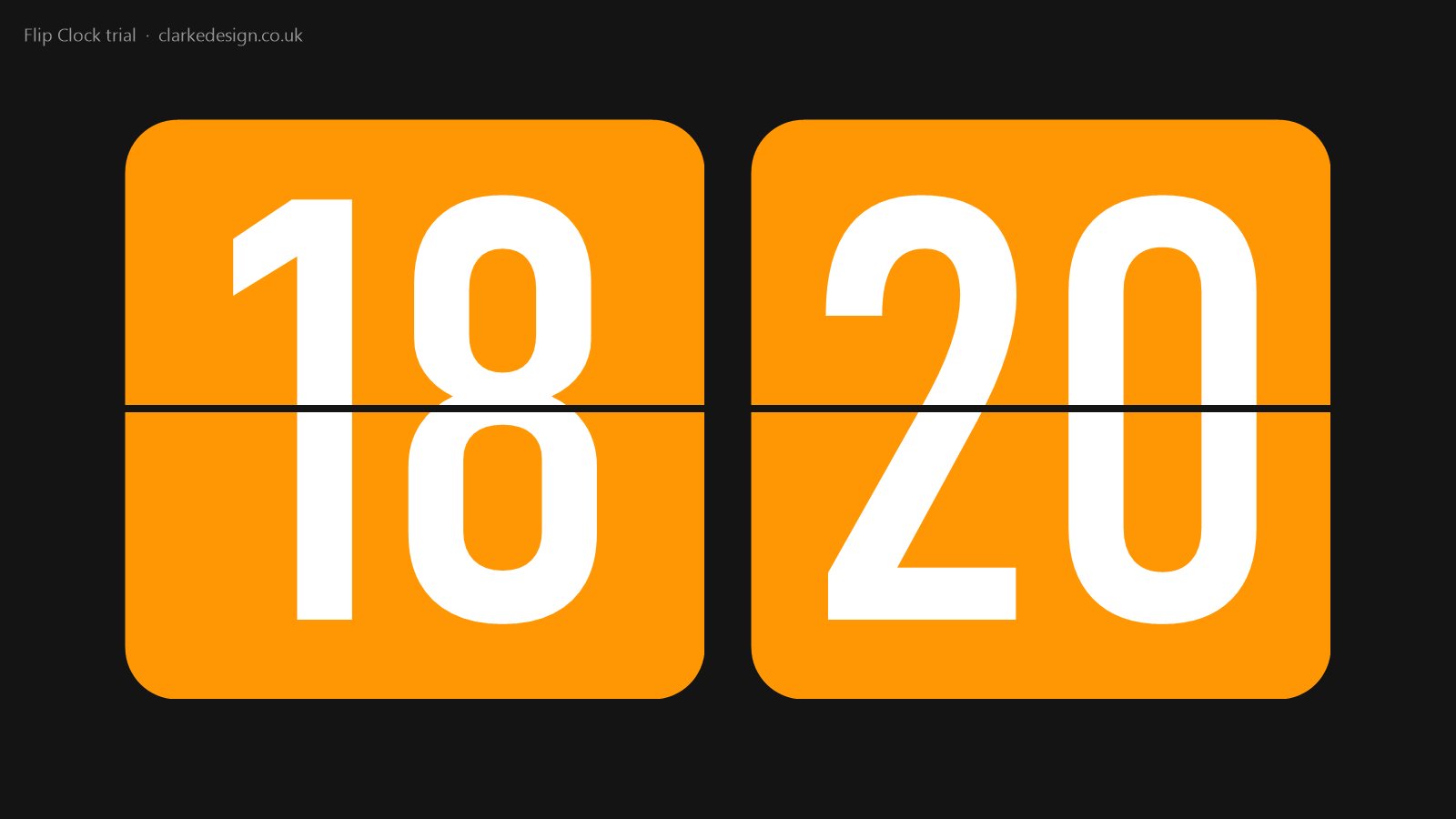
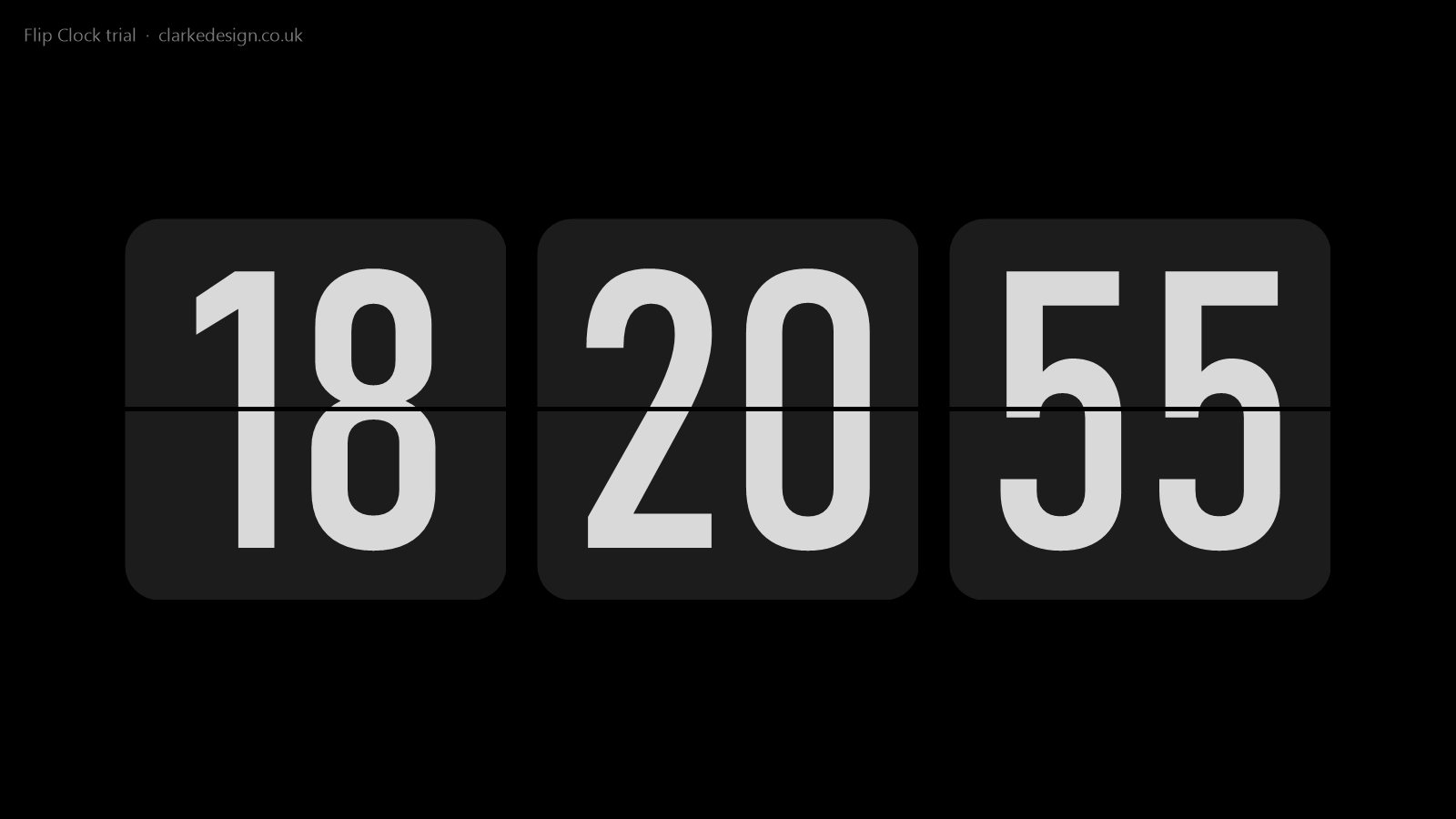
Retro style, modern settings
12 or 24-hour time
Choose the time format you're used to, with an optional AM/PM marker and leading zero, and add a third flap for the seconds.
Real flip animation
Each flap turns over as the time changes, just like a bedside clock. Prefer it still? Switch the animation off.
Landscape or portrait
The clock follows the shape of your display automatically, or you can fix it side by side or stacked.
Your colours
Pick the background, flap and digit colours yourself, or start from the Classic, Red, Orange, Midnight, Paper and Clarke presets.
Size and font
Make it fill from 30 to 100% of the screen, in any font on your computer. Show the flaps, or just the digits on their own.
One display or all
Show the clock on your main display with the others black, or on every display you have.
Settings
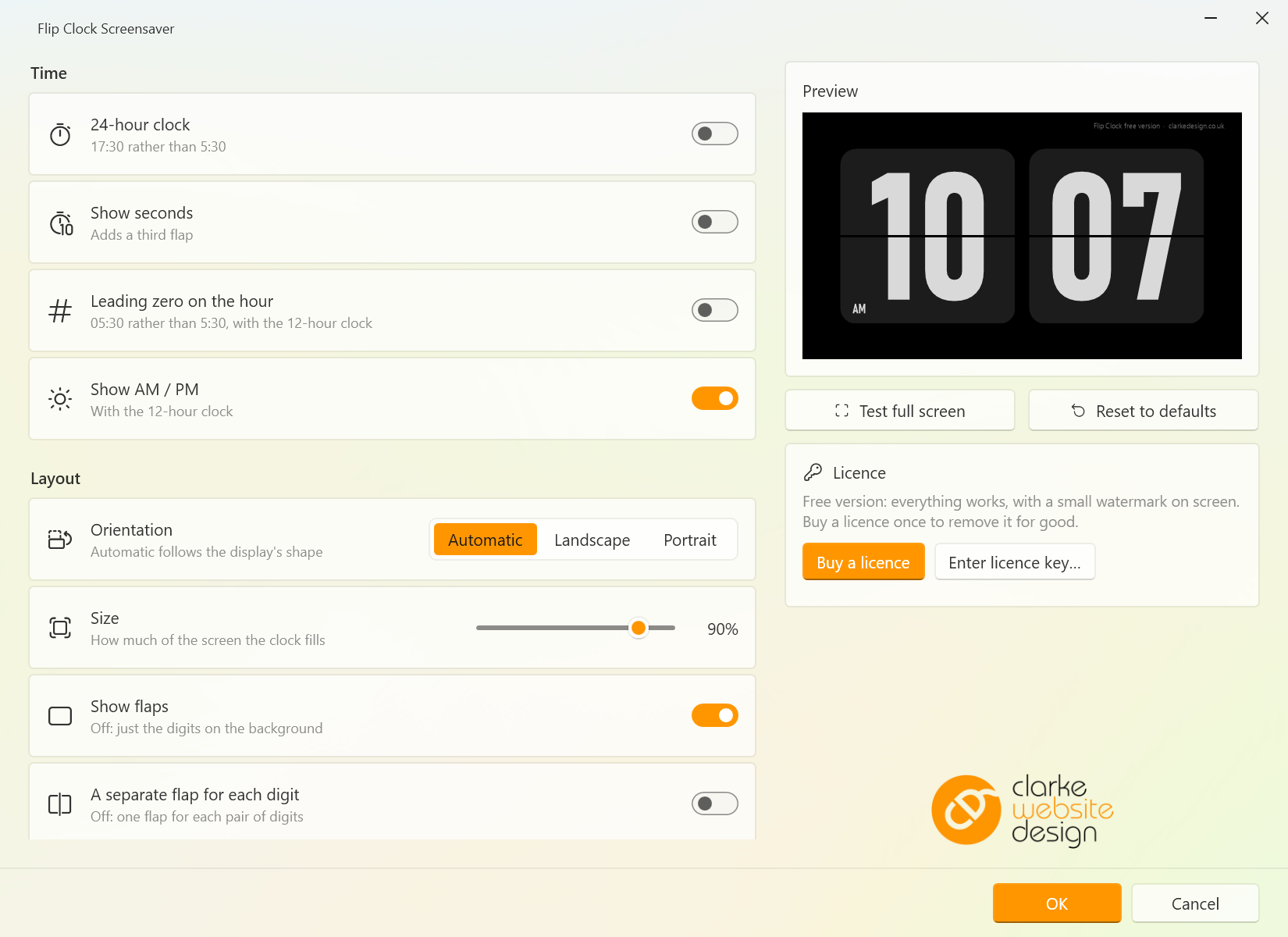
Click Settings… in Windows' Screen Saver Settings to make the Flip Clock Screensaver your own. Your choices are saved for your Windows account.
| Option | What it does |
|---|---|
| 24-hour clock | Off gives a 12-hour clock, with an optional AM/PM marker and leading zero |
| Show seconds | Adds a third flap for the seconds |
| Orientation | Automatic (follows the shape of the display), Landscape, or Portrait (stacked) |
| Size | 30 to 100% of the screen |
| Show flaps | Off shows just the digits on the background |
| Separate flap for each digit | One flap per digit, instead of one per pair |
| Animate flips | Turn off for an instant change |
| Colours | Background, flap and digit colours, plus Classic, Red, Orange, Midnight, Paper and Clarke presets |
| Font | Any installed font, in bold if you like. The default is Bahnschrift Condensed Bold |
| Dim display | 0 to 90% darker |
| Displays | Primary display only (the others go black), or all displays |
Perfect for
- Anyone who misses their old flip clock
- Offices and reception areas with a screen on show
- Second monitors that are often left idle
- Retro and minimalist desk setups
- Anyone who wants to glance at the time from across the room
Install in three easy steps
- Download the zip, open it, and double-click FlipClock-Setup-1.8.0.exe.
- Click Yes when Windows asks for permission, then Next and Install.
- Leave Use Flip Clock as my screensaver ticked and click Finish.
To change the colours and other settings later, open Flip Clock Screensaver settings from the Start menu.
Frequently asked questions
Ready to try the Flip Clock Screensaver?
It's free, it's small, and it takes a minute to install.
More screensavers: Word Clock · Departure Board · Aurora · OLED Safe · Sky Tonight