Side-Shelf
Windows Utility
A tidy home for today's files, right on the edge of your screen.
A drawer on the edge of your screen for the files you're working on: drop them in, and they're one move of the mouse away.
Free
Pro £6.99, one-off payment
Free for up to 10 items, with no time limit. Pay once for Side-Shelf Pro to add unlimited items, more shelves, expiry rules and batch actions.
- Slides out when the cursor rests on the screen edge
- Drag files in from Explorer, Outlook and your browser
- Drag them straight out into emails, folders and apps
- Opens from any app with Ctrl+Alt+S
- Send to Side-Shelf from any folder
For Windows 10 and 11 · side-shelf.zip · 8105 KB
See it in action
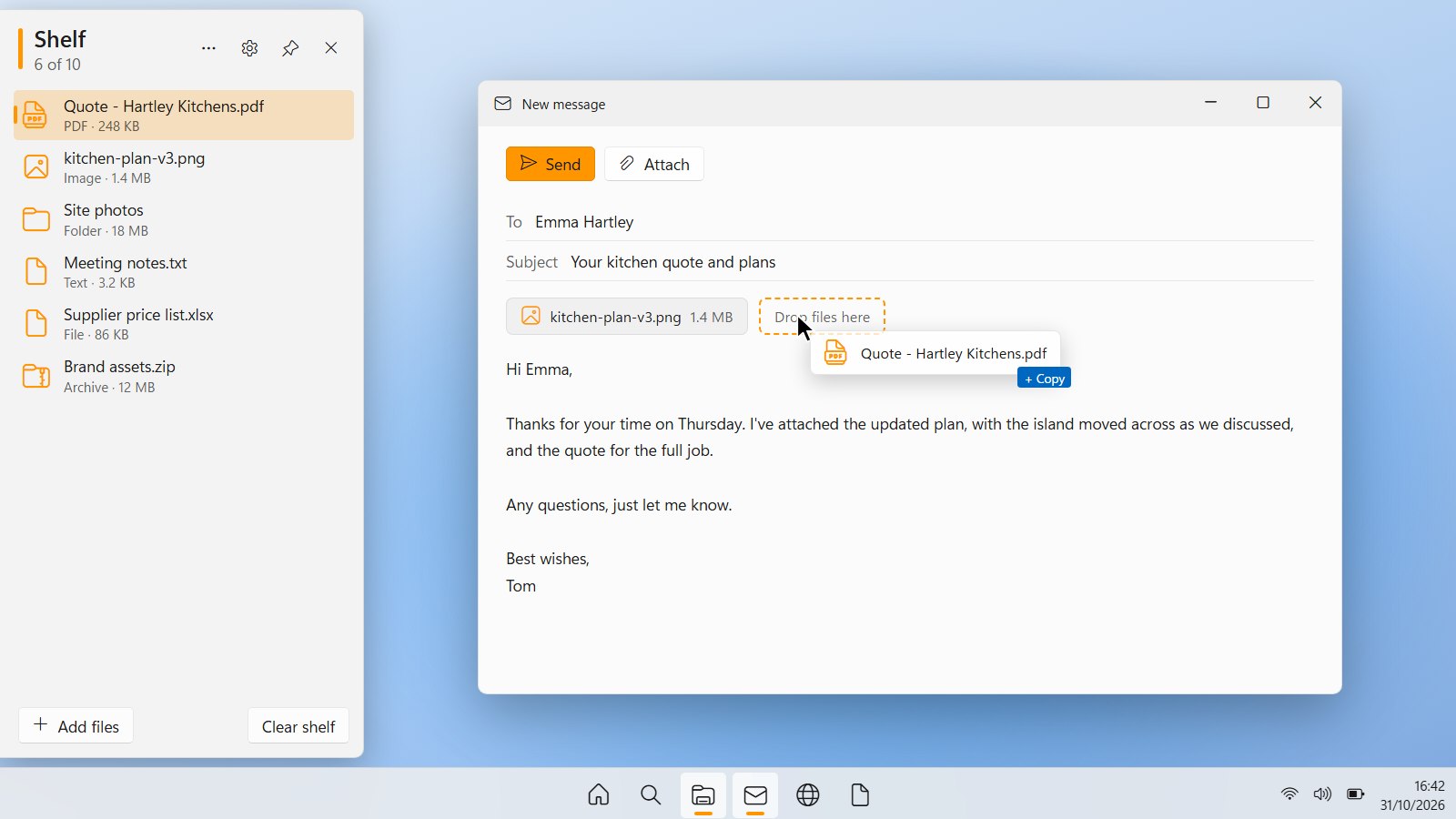
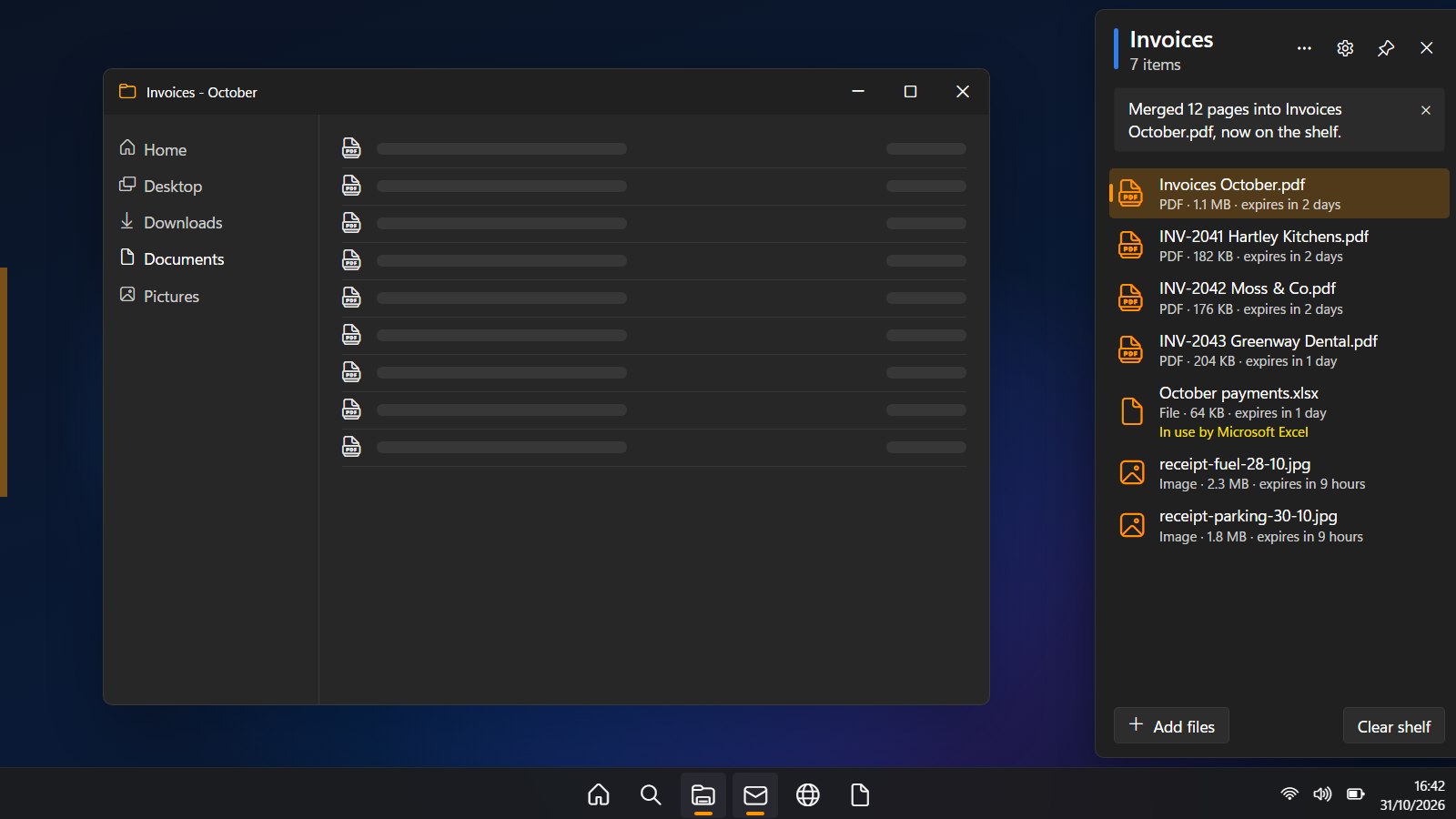
Your files, close at hand
Right there on the edge
Rest the cursor on the edge of your screen, and the shelf slides out; move away and it slides back. Or press Ctrl+Alt+S from any app. Passing the edge on the way somewhere else doesn't open it.
Drop anything on it
Files and folders from Explorer, attachments from Outlook and images from your browser. Drag over the thin tab on the edge, and the shelf opens to catch them, or right-click a file and choose Send to, Side-Shelf.
Drag them straight back out
Into an email, an upload form, a folder or any app that takes files. Double-click to open one, or right-click to show it in its folder or copy its path.
More shelves Pro
A shelf for each client or job, each with its own name, screen edge, display, colour and keyboard shortcut. Free holds up to 10 items; Pro has no limit.
Clears itself Pro
Set a shelf to clear its items after anything from an hour to 30 days: to the Recycle Bin, into a zip, to a folder of your choice, or gone for good. Files still open in another app are left alone.
Batch actions Pro
Zip everything on a shelf in one go, merge its PDFs into one in shelf order, or convert its images to PNG or WebP.
Free or Pro?
| Feature | Free | Pro |
|---|---|---|
| Items on the shelf | Up to 10 | Unlimited |
| Opens from the screen edge, or with a keyboard shortcut | Included | Included |
| Drag files and folders in from Explorer, Outlook and your browser | Included | Included |
| Drag them out into emails, folders and apps | Included | Included |
| Send to Side-Shelf from any folder | Included | Included |
| Move or copy files onto the shelf | Included | Included |
| Left or right edge, on the display of your choice | Included | Included |
| Pro features | ||
| Pro More shelves, each with its own edge, colour and shortcut | Not included | Included |
| Pro Expiry rules that clear old items automatically | Not included | Included |
| Pro Zip all, with an archive folder of your choice | Not included | Included |
| Pro Merge PDFs into one, in shelf order | Not included | Included |
| Pro Convert images to PNG or WebP | Not included | Included |
| Price | Free | £6.99 once |
| Download | Get Pro | |
Settings
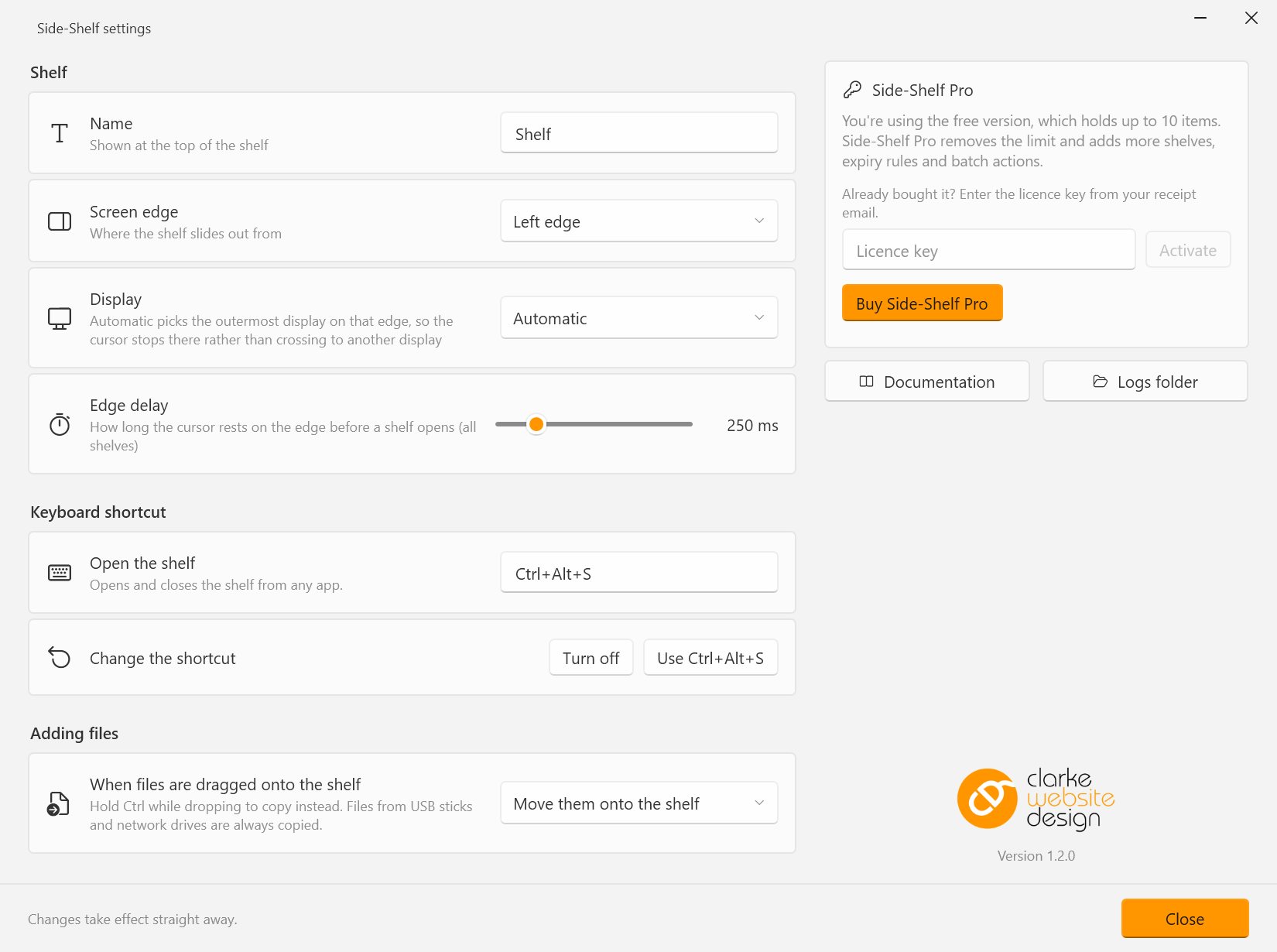
Open the settings from the gear button at the top of the shelf, from Side-Shelf's icon by the clock, or from Side-Shelf settings in the Start menu. Your choices are saved for your Windows account.
| Option | What it does |
|---|---|
| Name | Shown at the top of the shelf |
| Screen edge | Left or right |
| Display | Automatic (the outermost display on that edge, so the cursor stops there), or a display of your choice |
| Edge delay | How long the cursor rests on the edge before the shelf opens, from 0.1 to 1 second |
| Keyboard shortcut | Ctrl+Alt+S, your own keys, or none |
| Adding files | Move files onto the shelf, so they're off your Desktop, or copy them and leave the originals. Hold Ctrl as you drop to copy instead. |
| Startup | Start Side-Shelf when you sign in to Windows |
| Pro Shelves | Add more shelves, each on its own screen edge |
| Pro Colour | Orange, blue, green, purple, pink or teal, so each shelf's tab stands out |
| Pro Expiry | Clear items after 1 hour to 30 days: to the Recycle Bin, zipped into the archive folder, moved to a folder, or deleted permanently |
| Pro Archive folder | Where Zip all puts its zips; Documents\Side-Shelf Archive unless you choose another |
| Pro WebP quality | From 50 to 100, for converting images to WebP |
Perfect for
- Anyone whose Desktop fills up with downloads
- Sending the same files by email and upload forms
- Juggling files for several clients or jobs at once
- Moving images and PDFs between apps
- Laptops and small screens, where windows overlap
Install in three easy steps
- Download the zip, open it, and double-click the Side-Shelf setup file inside.
- Click Next and Install. If your PC needs Microsoft's .NET 10 Desktop Runtime, setup downloads it and Windows asks for permission.
- Click Finish, then rest the cursor on the left edge of your screen, or press Ctrl+Alt+S, to open the shelf.
Side-Shelf installs just for your Windows account, so you don't need to be an administrator. It adds Side-Shelf to the Start menu and to Send to when you right-click a file.
Frequently asked questions
Ready to try Side-Shelf?
It's free, it's small, and it takes a minute to install.
More Windows utilities: Folder Rules